User Management for SQL Server in OpenEverest
 Sergey Pronin, founder of Solanica and maintainer of OpenEverest (CNCF Sandbox)
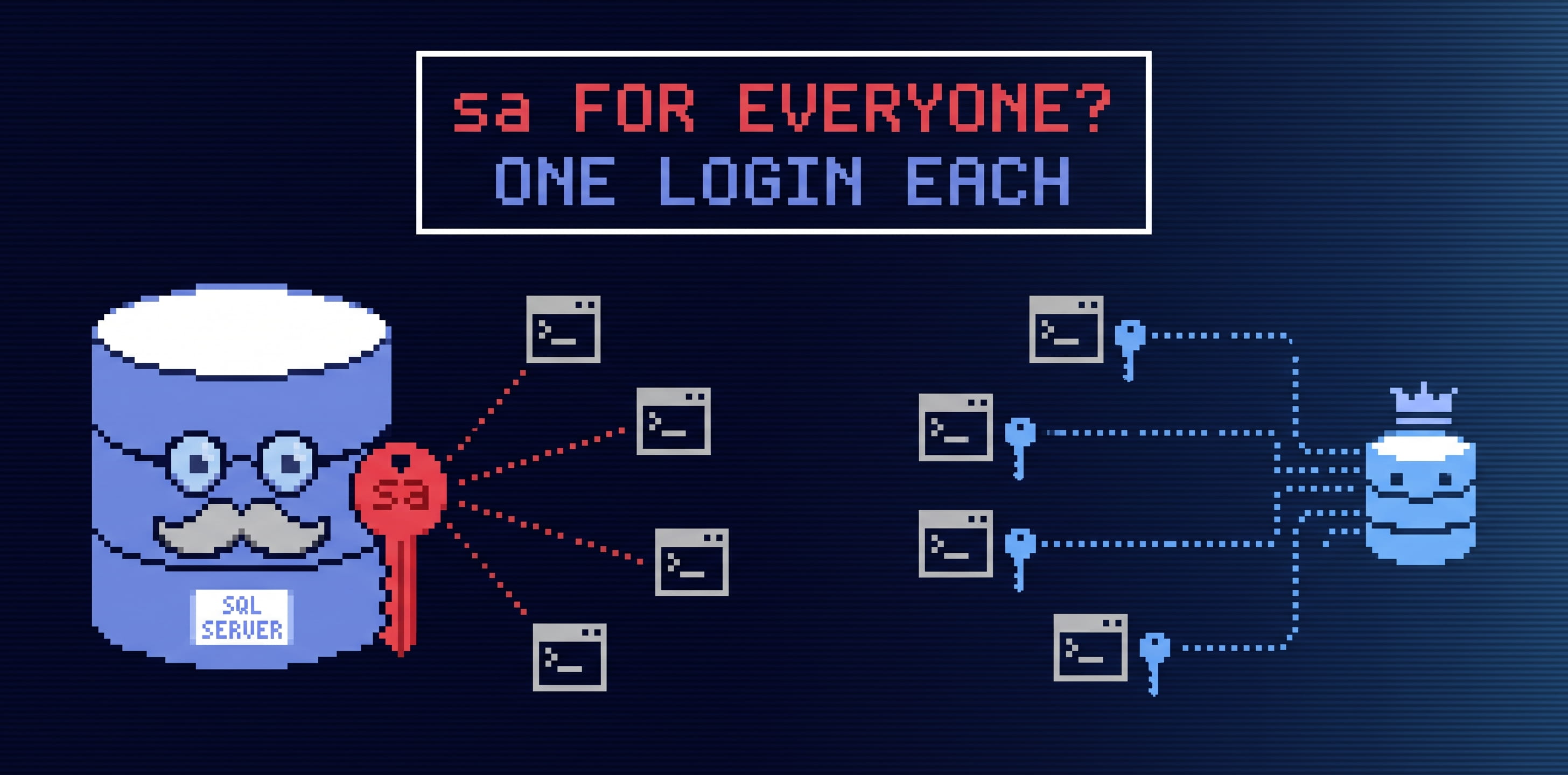
A new SQL Server instance has exactly one account you can log in with: sa.
It can do anything, including dropping every database on the server. And
because it’s the only account there is, it ends up in the connection string
of every application, in the CI secrets and in a shared password manager.
Giving an application its own login isn’t hard, if you know T-SQL and have a
shell on the server. CREATE LOGIN, CREATE USER in the right database,
ALTER ROLE ... ADD MEMBER, then a password to hand over somehow. On
Kubernetes that’s a kubectl exec into the pod, done by hand, written down
nowhere, and gone from the next instance you create.
We’ve added SQL Server to the User Management plugin for OpenEverest, so you don’t have to do it by hand.
The User Management plugin
plugin-user-management is an open-source (Apache 2.0) OpenEverest plugin that manages the users of a database instance, and their databases. It already did this for MongoDB and PostgreSQL, and for API keys of AI models. It now supports SQL Server instances run by our MSSQL provider.
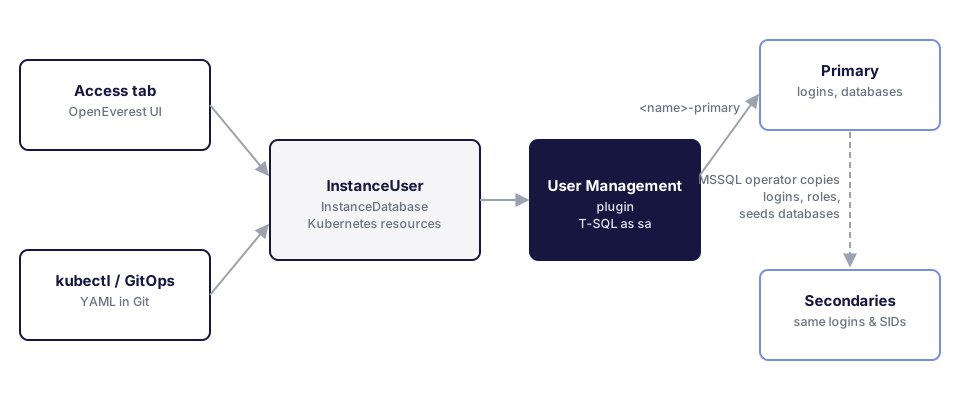
Users and databases are Kubernetes resources, InstanceUser and
InstanceDatabase. You create them in three ways:
- From the UI. The plugin adds an Access tab to the instance page, with a Users and a Databases section.
- Through the API. Everything the Access tab does is available through the OpenEverest API, checked against OpenEverest’s RBAC, so scripts and internal portals can onboard applications too.
- As code. Apply the same resources with
kubectl, or keep them in Git next to the application that uses them.
Either way, the plugin keeps SQL Server in sync with the resources. It creates the login, puts its password in a Kubernetes Secret, grants the roles and drops the login when the resource is deleted.
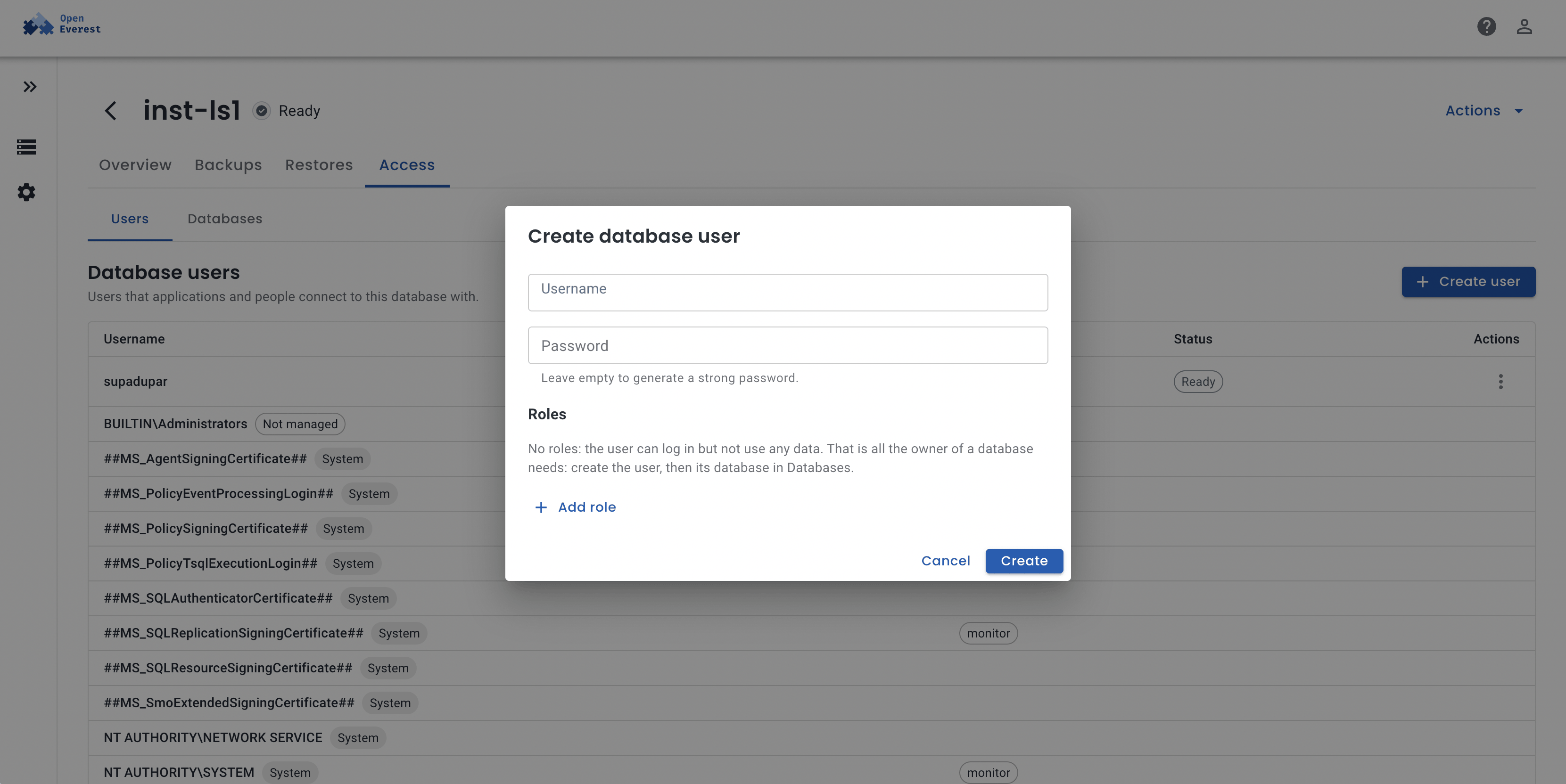
Users
Open the instance, go to Access, and create a user. Leave the password empty and the plugin generates one that meets SQL Server’s password policy, then shows the credentials and the connection string once the login exists.
A new user starts with no roles: it can log in, but can’t read any data. That’s all the owner of a database needs. Every other user gets its access with Add role.
The same user as a resource:
apiVersion: plugin-user-management.plugins.openeverest.io/v1alpha1
kind: InstanceUser
metadata:
  name: reporting
  namespace: finance
spec:
  instanceRef:
    name: erp              # the SQL Server instance
  username: reporting
  roles:
    - role: read
      database: orders
    - role: monitor
The password goes into the Secret reporting-credentials, with the keys
username, password and uri. Mount it into the application’s pod and
the application never needs sa. To rotate the password, change it in the
Secret, and the plugin changes it in SQL Server. To use a password of your
own, point passwordSecretRef at your Secret.
Roles are the same four on every SQL Server instance, mapped to SQL Server’s built-in roles:
| Role | Grants |
|---|---|
read | db_datareader on one database |
readWrite | db_datareader and db_datawriter on one database |
dbOwner | db_owner on one database |
monitor | VIEW SERVER STATE and VIEW ANY DEFINITION on the server |
sysadmin isn’t on the list on purpose: sa stays the administrator, and
the logins the plugin creates get only the roles you declare. If someone
changes those roles in T-SQL, say drops a user from db_datareader, the
plugin puts them back within five minutes.
Databases
The Databases section creates a database for one of the instance’s
users, its owner. The owner’s login becomes the database’s dbo, so the
team that owns the application owns its database too, without being an
administrator of the server. Other users get into the database through a
read, readWrite or dbOwner role on it, picked from a list.
The owner doesn’t have to exist yet. Pick New user… as the owner and enter a username: the plugin creates the user, with no roles, and then the database, and shows the new user’s credentials once both are ready. If the database fails, the dialog keeps the error, and a retry reuses the user it already created.
apiVersion: plugin-user-management.plugins.openeverest.io/v1alpha1
kind: InstanceDatabase
metadata:
  name: orders
  namespace: finance
spec:
  instanceRef:
    name: erp
  name: orders
  owner:
    instanceUserRef:
      name: orders-owner
  deletionPolicy: Retain
Deleting a database is where tools like this tend to hurt, so the plugin is careful about it:
- With
Retain, the default, deleting the resource only stops managing the database. The data stays. Removing the YAML from Git never loses data. - With
Delete, or after typing the database’s name in the UI, the plugin drops it: it ends idle sessions, waits for running queries to finish, and only then drops the database. - The plugin never takes over a database it didn’t create, and only ever drops databases it created.
Availability Groups
On an Always On Availability Group, a login is harder than it looks. Logins
live in master, and master isn’t replicated. A login created on the
primary doesn’t exist on the secondaries, so after a failover the
application can’t log in. If someone recreates the login by hand, it gets a
new SID, and its database users no longer belong to it: the classic orphaned
user.
This one is solved by our MSSQL operator, not the plugin. Since v0.1.19 the operator copies SQL logins, server roles and server permissions from the primary to every secondary, with the same SID and the same password hash. After a failover the same login and password work on the new primary, and the database users are still mapped to it. Databases the plugin creates are added to the Availability Group and seeded to the secondaries, and dropping one goes through a lock the operator honours, so the operator doesn’t add it back in between.
The plugin connects to the primary through the instance’s -primary
Service and leaves the rest to the operator. A database shows as Pending
until the operator has added it to the group, then Ready.
This isn’t specific to the plugin: logins you create yourself on the primary are copied the same way.
Also new in the MSSQL provider
The plugin needs provider-mssql v0.1.18 for Availability Groups. It bundles MSSQL operator v0.1.19, and the two releases bring more:
- Availability Group scale-down. Lower the replica count and the operator moves the primary off the leaving replicas with a planned failover, then removes them from the group.
- Growing disks in place. Raise the disk size of a running instance. On storage that grows file systems online, nothing restarts. Otherwise pods restart one at a time, secondaries first.
- Faster failover in a corner case. If the primary dies while the operator is in the middle of reconciling the group, a secondary now takes over in about 15 seconds.
- Watching selected namespaces. The operator can be limited to the namespaces you list.
The release notes list everything, including the field renames in operator v0.1.19, which the provider applies for you.
Try it
You need OpenEverest with provider-mssql v0.1.18 or later. Then install the plugin:
helm install plugin-user-management \
  oci://ghcr.io/openeverest/charts/plugin-user-management \
  --version 0.2.4 \
  --namespace everest-system
Open a SQL Server instance and you’ll find the Access tab. Users, Roles and Databases in our docs covers the details, and the plugin’s README covers the other databases it supports.
The plugin is open source and lives in the OpenEverest organization. Issues and pull requests are welcome.