Run MSSQL with the Solanica Platform
This quickstart deploys SQL Server as a managed service using the
MSSQL Provider. You declare a single
Instance; the provider and the bundled MSSQL Operator
do the rest.
Prerequisites
- A Kubernetes cluster (v1.27+) and
kubectl - Helm v3.8+
- OpenEverest CRDs installed (the Solanica Platform installs these for you)
- cert-manager
1. Install the provider
The provider and its bundled operator are not publicly available. You need Solanica registry credentials — see Provider Installation → Authenticate, or contact us to request access.
Log in and install the chart (it bundles the MSSQL Operator by default):
helm registry login ghcr.io --username <your-username> --password <your-access-token>
kubectl create secret docker-registry solanica-registry \
  --docker-server=ghcr.io \
  --docker-username=<your-username> \
  --docker-password=<your-access-token>

helm install provider-mssql \
  oci://ghcr.io/solanicaio/charts/provider-mssql \
  --version 0.1.9 \
  --create-namespace \
  --set imagePullSecrets[0].name=solanica-registry
Verify:
kubectl get pods
kubectl get providers.core.openeverest.io
2. Create an Instance
You can create a database in two ways — both act on the same Instance resource.
Option A: Web UI
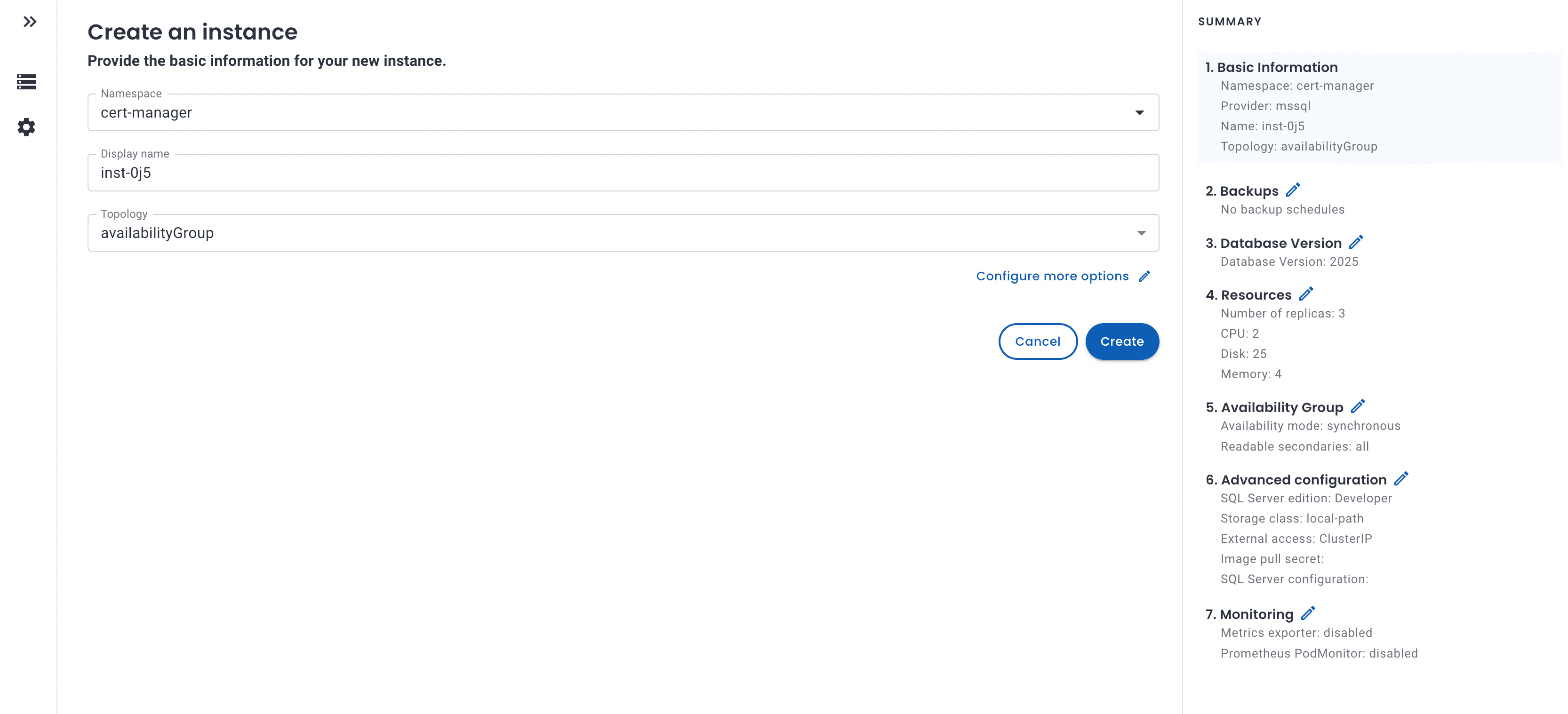
On the Solanica Platform, open the Web UI, choose Create → Microsoft
SQL Server, and follow the guided form to pick a version, topology, and
resources. The platform submits the Instance for you.
Option B: kubectl
Save the following as instance.yaml:
apiVersion: core.openeverest.io/v1alpha1
kind: Instance
metadata:
  name: my-database
spec:
  providerRef:
    name: mssql
  version: "2022"
  topology:
    type: standalone
  components:
    engine:
      replicas: 1
      storage:
        size: 10Gi
      parameters:
        edition: Developer
Apply it:
kubectl apply -f instance.yaml
kubectl get instances -w
Beyond Instance, the full OpenEverest API (Backup, Restore,
BackupStorage, …) is available from both the Web UI and kubectl. See
More than a Custom Resource.
3. Connect
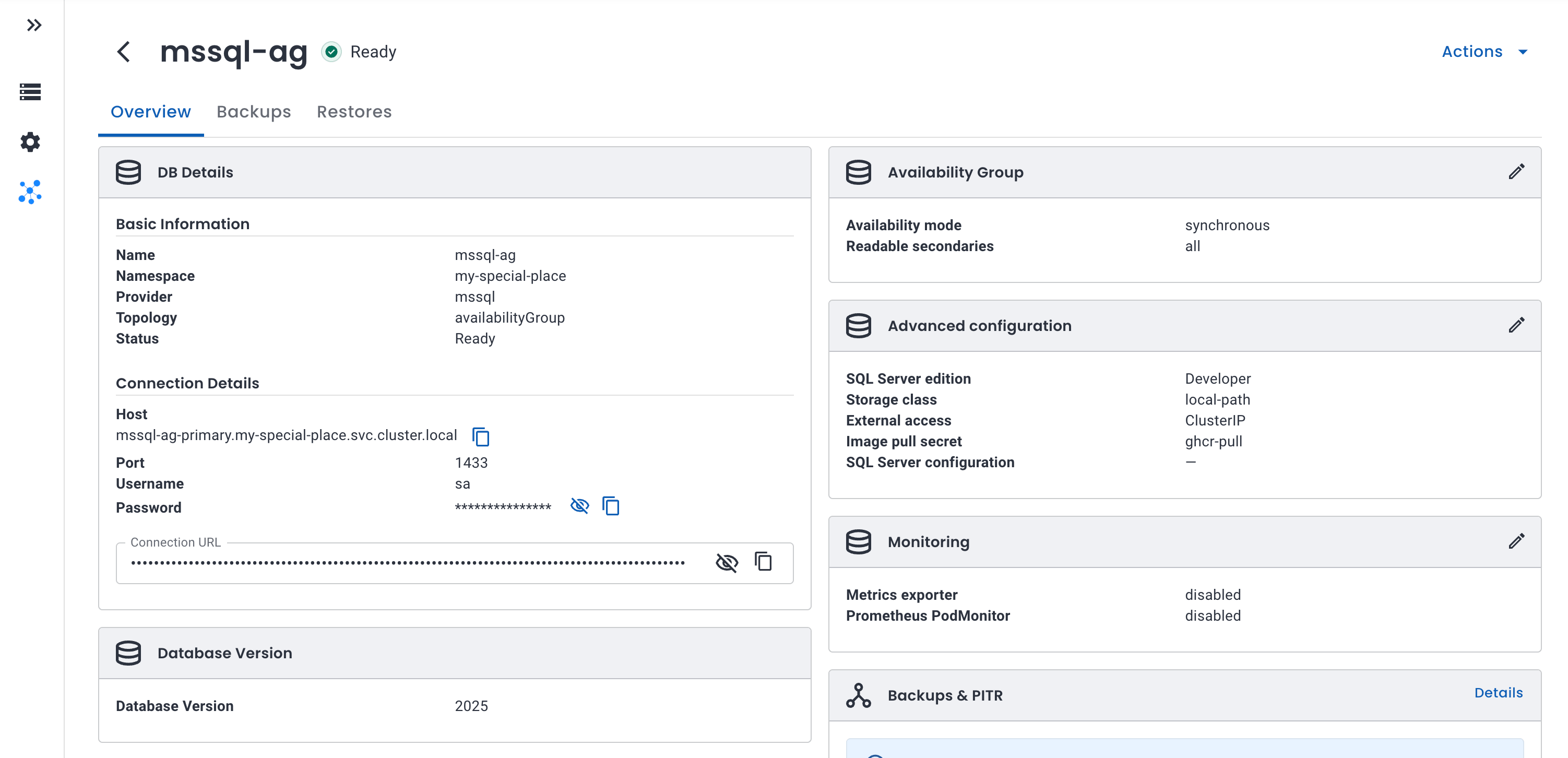
Once the instance is ready, the Web UI shows an overview of the cluster with the login, password, and connection string:
You can also connect from the command line. Port-forward the instance Service and
connect with sqlcmd:
SA_PASSWORD=$(kubectl get secret <secret-name> -o jsonpath='{.data.MSSQL_SA_PASSWORD}' | base64 -d)
kubectl port-forward svc/my-database 1433:1433
sqlcmd -S "tcp:localhost,1433" -U sa -P "$SA_PASSWORD" -C -Q "SELECT @@VERSION"
See Connecting for full details.
Next steps
- Topologies — add high availability.
- Backup & Restore — protect your data.
- Instance reference — every field.